

 Microsoft AppSource-approved App
Visual Production Scheduler for Business Central
VPS (Visual Production Scheduler) is a Gantt chart of your Business Central production orders, in which operations are moved by drag and drop. BPAS works with SME manufacturers across India.
One production order, four questions answered
-
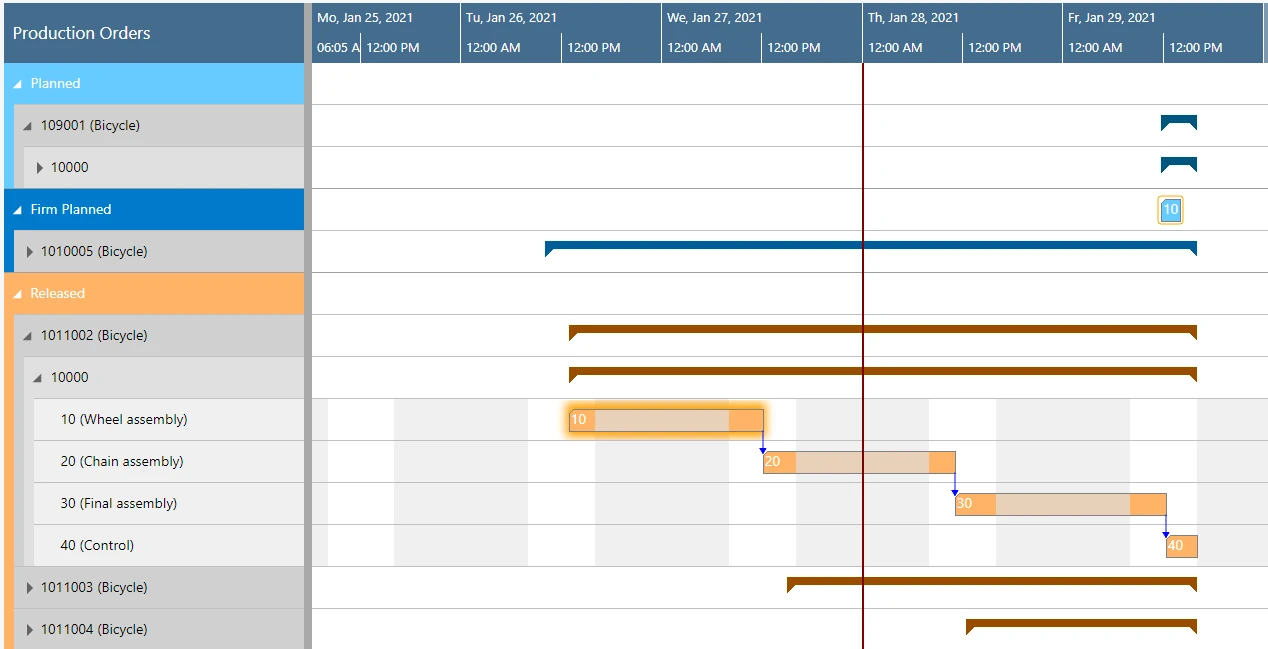
01 · See Where is each production order? The Production Order View shows production orders grouped by status, with each operation as a bar on the calendar.
-
02 · Move Can this operation run later? Drag and drop along the time scale changes the dates of an operation.
-
03 · Reassign Can another machine take it? In the Capacity View, an operation can be moved to another work center or machine center.
-
04 · Save When does Business Central change? Changes are stored when you click Save; until then they can be restored to their initial values.
- See
- Move
- Reassign
- Save
One Business Central area, extended by VPS
If your production schedule lives in a spreadsheet next to Business Central, you do not need to replace your ERP. VPS works with the production orders, routings and machine centers your team already keeps in Business Central. The card shows what Business Central does on its own and what VPS adds.
-
Business Central Area 09
VPS Extension for Business Central Manufacturing
- Business Central on its own
- Manufacturing helps plan, schedule, execute and analyse production: routings define operations, and work centers and machine centers model capacity and costs. Manufacturing needs the Premium experience.
- VPS adds
- Each operation of a production order as a bar in a Gantt chart; drag and drop to another date, or in the Capacity View to another work center or machine center; overloads shown in the Capacity View and the Histogram View; changes stored in Business Central when you click Save.
What VPS does with your production schedule, and what it returns
Open any feature to see how it works in Business Central and what it means for dates, capacity and cash. Each one gets its own guide, with core concepts, best practices and a vocabulary.
Views
Operational Reality (Capabilities)
The Production Order View groups production orders by status, and each operation is a bar whose colour follows the order and the selected view colour mode, a few shades brighter during non-working times. Bars mark the selected operation and operations changed but not saved, and a diamond marks the due date and turns red when it is exceeded. The work date line shows the work date set in Business Central, and the update line shows when the plan was last updated.
- Production orders grouped by status
- Operations as bars on a calendar
- Due date diamond that turns red when exceeded
Executive ROI Value
Planners and production heads see every production order and its operations on one time line.
- One picture of all orders
- Late orders visible at a glance
Operational Reality (Capabilities)
The Capacity View shows capacity loads by work centers and machine centers, with work center groups, work centers and machine centers in the table and each operation as a bar. An optional capacity curve shows free and exceeded capacities, with a red box for an overload, and symbols in the table mark an overload at a group, at a resource below it, or at both. In the Capacity View, an operation can also be moved to another work center or machine center.
- Work center groups, work centers and machine centers
- Capacity curve with overloads in red
- Moves to another work or machine center
Executive ROI Value
The planner sees which machines are overloaded and moves work to where there is capacity.
- Overloads shown where they happen
- Work moved to machines with free capacity
Operational Reality (Capabilities)
The Histogram View shows the histograms of the work centers and their machine centers and offers visual decision support by showing impending capacity problems: overloads are shown as a red box in the chart and with symbols in the table. The capacity curve combines a resource’s allocation with its availability, and the capacity can be calculated by second, day, week or month. With a view filter, the histograms show only the capacity used by the visible activities.
- Histograms per work center and machine center
- Overloads as a red box
- Capacity by second, day, week or month
Executive ROI Value
Capacity problems show up before they turn into late orders.
- Bottlenecks visible ahead
- One picture for capacity discussions
Operational Reality (Capabilities)
The Production Order Status View Color Mode, the default, colours operations by production order status, and the Execution Status View Color Mode colours them by their status on the shop floor: ready to get in progress, in progress, finished, with posting issues, and the rest. The colours of both modes are set on the Color Mode Setup page.
- Production Order Status View Color Mode
- Execution Status View Color Mode
- Color Mode Setup page
Executive ROI Value
The same schedule shows both where each order stands and what is happening on the floor.
- Status visible without opening orders
- Shop floor problems stand out
Changing the Schedule
Operational Reality (Capabilities)
Operations are moved horizontally along the time scale, which changes when they are worked off; in the Capacity View they can also be moved vertically to another work center or machine center, while a phantom bar marks the original position. With multiple selection, which is off by default, several operations are moved together; finished operations are not moved, and for operations in progress a dialog asks which ones to move.
- Horizontal moves change dates
- Vertical moves in the Capacity View
- Several operations at once
Executive ROI Value
Planners reschedule on the chart instead of editing dates order by order.
- Rescheduling done on the chart
- Changes made where the conflict is seen
Operational Reality (Capabilities)
Operations can be moved together with their linked preceding or succeeding operations, and predecessor and successor operations can be rescheduled automatically when an operation is modified, with float time kept as small as possible, for sequential and parallel operations. Dependencies between several production order lines of a production order can be taken into account. Links connect operations within a production order line and production orders, can also connect production order lines, and appear when an order or line is selected.
- Moves with predecessors or successors
- Automatic rescheduling of linked operations
- Links between operations, lines and orders
Executive ROI Value
When one operation moves, the operations that depend on it follow.
- Routing sequence kept
- Fewer manual follow-up moves
Operational Reality (Capabilities)
VPS can consider the queue time set on the work center or machine center card in Business Central; queue time has no impact on the load of the work center or machine center. It can also consider the send-ahead quantity set on the routing, so that a dependent operation starts before the current operation is fully completed, and it tries to avoid gaps of non-productive periods on the successor of an operation.
- Queue time from the work or machine center card
- Send-ahead quantity from the routing
- Fewer gaps on successors
Executive ROI Value
Dates in the schedule reflect the waiting and overlap times already kept in Business Central.
- Realistic gaps between operations
- Overlapping operations where the routing allows
Operational Reality (Capabilities)
A setting decides how a move that conflicts with reservation entries is handled: a warning that rejects the move, a choice to cancel or confirm, or no warning, in which case the conflicting reservation is removed. Moving an operation of a released production order that has a purchase order needs confirmation and is not possible in the Capacity View. When predecessors or successors are rescheduled automatically and the routing status is taken into account, moving an operation in progress, or one next to it, gives a warning.
- Reservation conflicts warned or rejected
- Confirmation for operations with a purchase order
- Warning for operations in progress
Executive ROI Value
Moves that would break a reservation or a purchase order can be caught before they are made.
- Fewer broken reservations
- Purchase-linked operations protected
Alerts and Progress
Operational Reality (Capabilities)
When operations are moved against the order of the routing, VPS can draw attention to these sequence violations with symbols at the elements concerned and in the table part. Orders that, with the current settings, will finish past their due date are marked by a visual alert, and operations exceeding the due date show a red dot.
- Sequence violation symbols
- Visual alert for late orders
- Red dot on operations past the due date
Executive ROI Value
Problems show on the chart, so the planner can deal with them before they reach the floor.
- Late orders flagged early
- Routing order respected
Operational Reality (Capabilities)
For production order routing lines of released production orders, a progress bar can be shown, based on the quantity produced or on the production time passed. The bar is grey below 100 percent and red above it, when more was posted than initially planned, and finished operations are shown black or greyed.
- Released production orders
- Quantity produced or time passed
- Red when more was posted than planned
Executive ROI Value
Progress on the floor is visible in the schedule without opening each order.
- Progress in view while planning
- Overruns stand out in red
Business Central Integration
Operational Reality (Capabilities)
Changes made in VPS are stored when you click Save, followed by a confirmation message. Restore to initial values sets selected operations back to their original values before the changes are saved, and if there are unsaved changes when you click Reload, a dialog asks whether to save or discard them.
- Save stores the changes
- Restore to initial values before saving
- Reload asks about unsaved changes
Executive ROI Value
Planners try a move on the chart and keep it only when it works.
- No accidental changes to live dates
- One clear moment of commitment
Operational Reality (Capabilities)
Comments, tool information, personnel information and quality measure information on a routing line can be flagged with an info symbol and created or edited from the schedule. A double-click on a production order, production order line, production order routing line or work center switches directly to the matching Business Central dialog.
- Info symbol on routing lines
- Comments, tools, personnel and quality measures
- Business Central dialogs by double-click
Executive ROI Value
Planners check and update the details behind an operation without leaving the schedule.
- Fewer screens to open
- Notes kept where the work is planned
Operational Reality (Capabilities)
The work and non-work periods of each work center and machine center come from the shift calendars and are shown in grey and white, and non-working periods can be shown or hidden. Setup times can be shown as a grey part at the beginning of the bar.
- Shift calendars from Business Central
- Non-working periods shown or hidden
- Setup time at the start of the bar
Executive ROI Value
Bars show real working time and setup, so gaps and overruns are easy to read.
- Shifts visible on the chart
- Setup time in view
Working Set-up
Operational Reality (Capabilities)
Data filters work as Business Central filters on reading the data, for work centers, work center groups, machine centers and production orders, and apply when VPS starts or reloads. View filters apply to data already loaded into VPS. Several data filters and view filters can be named and stored.
- Data filters on reading
- View filters on loaded data
- Named, stored filters
Executive ROI Value
Each planner works with the part of the plant that is theirs.
- Focused views per planner
- Less clutter on the chart
Operational Reality (Capabilities)
In the Scheduler Mode, the default, the plan can be changed; the Viewer Mode shows the plan without changing it, with all scheduling options and saving hidden, while Business Central data can still be changed on the Business Central pages. Automatic Screen Updates decide whether and how often the view updates and scrolls in the Viewer Mode, for example on a shop floor screen.
- Scheduler Mode to plan
- Viewer Mode to look only
- Automatic Screen Updates
Executive ROI Value
Sales and the shop floor see the same schedule as the planner, without changing it.
- One schedule for planner, sales and floor
- No accidental changes from viewers
Operational Reality (Capabilities)
Tooltips can be configured for production orders, production order lines, operations, work center groups, work centers and machine centers, and bar labels for operations and table texts are built from fields of Business Central tables. The default sorting order can be changed for nearly all elements in the plan, and in both views production order lines and operations can be searched.
- Configurable tooltips
- Bar labels and table texts
- Sorting and search
Executive ROI Value
Each team sees the fields it needs on the chart without opening orders.
- Fewer clicks per decision
- The chart speaks the plant’s language
VPS licence. In Business Central online, VPS is bought on Microsoft AppSource as a monthly or yearly subscription, or through a partner, and each licence is assigned to an individual user. A licence on its own gives no rights inside Business Central: every user who works with VPS also needs the VPS permission set. VPS can also be installed on Business Central on-premises.
VPS works inside your Business Central
VPS shows the production orders, routings, work centers and machine centers already in Business Central, and Business Central changes only when you click Save.
- ◆Exclusive Boyum Practice. India's No.1 Customer-referred Boyum IT Partner.
- ★Boyum APJ Partner Excellence Award 2024
Swipe sideways to see the full diagram
-
01
Microsoft AppSource-approved
VPS is a Microsoft AppSource-approved Boyum IT app for Business Central online, and it can also be installed on Business Central on-premises.
-
02
Business Central unchanged until you save
Changes in VPS reach Business Central only when you click Save; before that they can be restored to their initial values.
-
03
Your own manufacturing data
VPS shows the Business Central production orders, production order lines and routing lines on the work centers and machine centers, with their shift calendars.
-
04
Inside the Business Central client
VPS fully integrates with Business Central, and its menu ribbon groups the most frequently used options under NETRONIC VPS.
From a spreadsheet schedule to VPS in Business Central
Three steps from the first conversation to VPS running in your Business Central.
-
01Step 01
Gap Review on Your Plant
In a BPAS gap review you get a short list of what is costing your plant dates and money today, and the order to fix it in.
You get Your fix list, in order
-
02Step 02
VPS Deployment on a Test Copy
VPS runs on a test copy of your Business Central company with your own production orders, routings and machine centers, before it touches live data.
You get VPS proven on your own data
-
03Step 03
Go-Live and Ongoing Support
Your planners work in the VPS Gantt chart from go-live, and BPAS stays with your plant after it.
You get Your production schedule running in VPS
One VPS idea every week
Every week BPAS posts a short carousel for SME manufacturers on scheduling production in Business Central with VPS. Swipe through this week's here, or follow BPAS to get the next one in your feed.
In every carousel
- A planning problem 01
- Where standard Business Central stops 02
- How VPS handles it 03
- Illustrative ₹ impact for an Indian SME plant 04
This week's carousel appears here.
What's new in VPS
The latest VPS releases in plain words: what changed in each version.
- VPS
VPS 1.25: Color Mode Setup and the Manual Sort Order Mode
The view colour modes are more flexible, with a new Color Mode Setup page in the Role Center for custom production order and execution status colours, and a new Manual Sort Order Mode in the context menus of machine centers, work centers and work center groups.
Read the update → - VPS
VPS 1.24: the Execution Status View colour mode
A new Execution Status View colour mode gives feedback on the status of operations on the shop floor, and new options in the VPS setup improve responsiveness when navigating big plans.
Read the update → - VPS
VPS 1.23.1: two new layout options
Two new Layout options in the Appearance area of the VPS setup: Show Details opens the layout card of the selected layout to customise it, and Select From Full List opens the layout list to modify, add and delete layouts.
Read the update →
See your own schedule in VPS
Bring the production orders your planners move around most. We show you the same orders in the VPS Production Order View and Capacity View, before you commit to anything.