

 Microsoft AppSource-approved App
Visual Jobs Scheduler for Business Central
VJS (Visual Jobs Scheduler) is a Gantt chart of your Business Central projects, called jobs in VJS, and their resources, in which job planning lines are moved and created by drag and drop. BPAS works with SME manufacturers across India.
One job, four questions answered
-
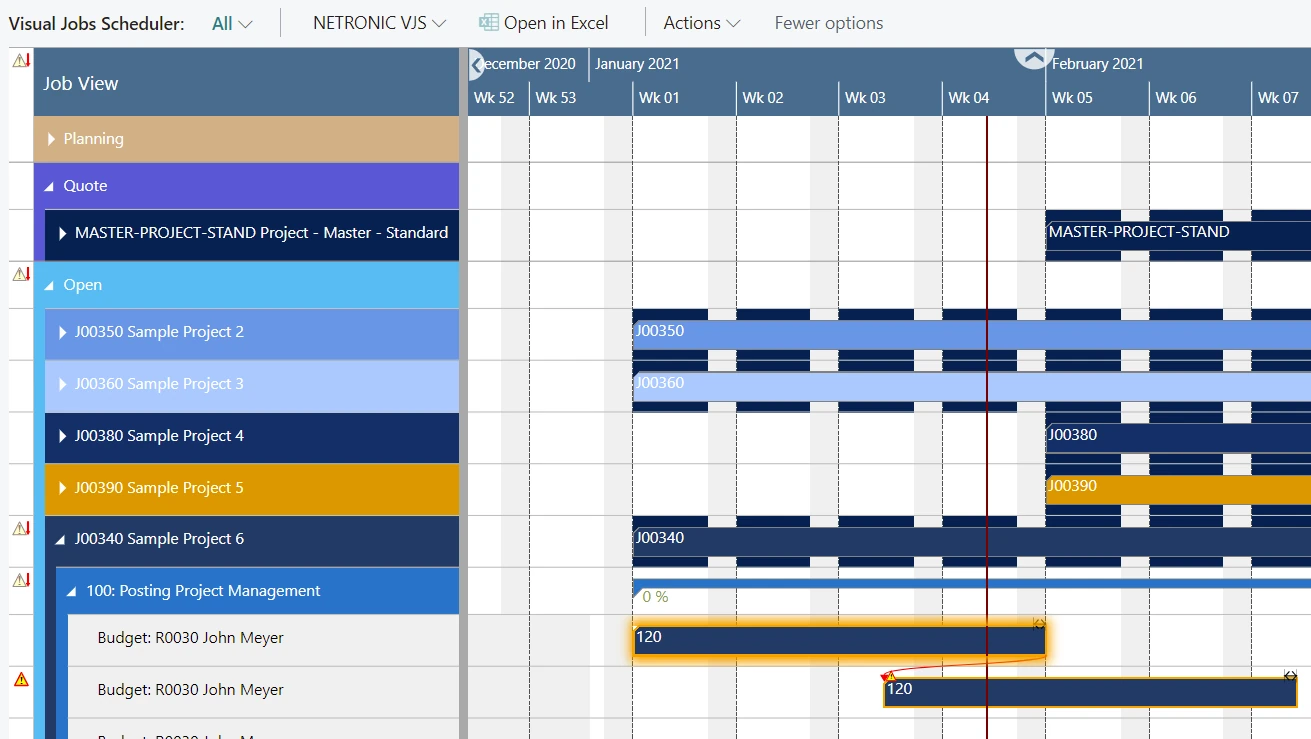
01 · See Where does each job stand? The Job View shows jobs grouped by their status, with each job, job task and job planning line as a bar.
-
02 · Allocate Who will do the work? In Creation Mode, dragging a resource from the list to the chart creates a new job planning line.
-
03 · Check Is anyone overbooked? The capacity curve shows free and exceeded capacities, with a red box for an overload.
-
04 · Save When do my changes reach Business Central? Changes made in the VJS chart are written back to Business Central only when you press Save.
- See
- Allocate
- Check
- Save
Two Business Central areas, extended by VJS
If your job and resource plan lives in a spreadsheet next to Business Central, you do not need to replace your ERP. VJS works with the jobs, job tasks and resources your team already keeps in Business Central. Each card shows what Business Central does on its own and what VJS adds.
-
Business Central Area 10
VJS Extension for Business Central Project Management
- Business Central on its own
- Business Central supports project accounting: creating projects and scheduling resources, assigning project tasks and preparing project planning lines, providing budget information and monitoring progress, with machine and employee hours tracked on time sheets.
- VJS adds
- Each job, job task and job planning line as a bar in the Job View; in Creation Mode, dragging a resource from the list to the chart creates a new job planning line; links are considered when linked work is moved, and Schedule Successors schedules successors without buffer time; changes made in the chart are written back when you press Save.
-
Business Central Area 11
VJS Extension for Business Central Resources
- Business Central on its own
- A default amount per hour is set for each resource, and its price and cost amounts apply when it is used or sold in a project. Resources can be combined in resource groups, whose capacities and budgets accumulate from the individual resources, and capacity represents a resource’s available time for a period on the work calendar.
- VJS adds
- The Resource View and the Histogram View show resource groups and resources with free and exceeded capacity and an overload as a red box; work moves to a different resource by drag and drop; a notification appears when a resource’s capacity is exceeded.
What VJS does with your jobs and resources, and what it returns
Open any feature to see how it works in Business Central and what it means for dates, people and cash. Each one gets its own guide, with core concepts, best practices and a vocabulary.
Views
Operational Reality (Capabilities)
The Job View shows jobs grouped by their status, and each job, job task and job planning line is a bar, the colour of the job planning line bars following the job’s category. A green line under the job bar shows the job’s progress, a number under the job task bar shows the task’s progress, and a red vertical line marks the work date set in Business Central.
- Jobs grouped by status
- Job, job task and job planning line bars
- Progress of jobs and job tasks
Executive ROI Value
Project managers see every job, its tasks and its planned work on one time line.
- One picture of all jobs
- Progress visible without a report
Operational Reality (Capabilities)
The Resource View shows resource groups and their resources and visualises capacity bottlenecks and date conflicts. Absences of employees linked to resources are shown in light pink in the calendar and in the capacity curve. In the Resource View, an operation can also be moved to a different resource.
- Resource groups and resources
- Capacity bottlenecks and date conflicts
- Employee absences in the calendar
Executive ROI Value
Resource managers see who is booked, who has time and who is away.
- Bookings and absences in one view
- Date conflicts visible early
Operational Reality (Capabilities)
The Histogram View shows the histograms of all resource groups and resources, in the same order as in the Resource View, and offers visual decision support by showing impending capacity problems, with free and exceeded capacities and a red box for an overload. With a view filter, the histograms show only the capacity used by the visible activities.
- Histograms per resource group and resource
- Free and exceeded capacities
- Overloads as a red box
Executive ROI Value
Capacity problems show up before they turn into missed job dates.
- Bottlenecks visible ahead
- One picture for capacity discussions
Operational Reality (Capabilities)
A capacity curve in the Resource View shows free and exceeded capacities, with a red box for an overload. Notifications appear in a window below the menu ribbon when a job planning line is moved behind the job’s end date and when a resource’s capacity is exceeded, for data within the time range of the plan.
- Capacity curve in the Resource View
- Notification when capacity is exceeded
- Notification when work moves past the job’s end date
Executive ROI Value
Overbooked resources and late work are flagged while the plan is being changed.
- Problems flagged as they appear
- Job end dates kept in view
Planning the Work
Operational Reality (Capabilities)
Job tasks and job planning lines are moved horizontally along the time scale in the Job View and the Resource View. When a job task or job planning line is moved in the Job View, every subordinate operation shifts as well. In the Resource View, an operation can also be moved vertically to a different resource, which then works it off.
- Horizontal moves in both views
- Subordinate operations shift with the job task
- Vertical moves to another resource
Executive ROI Value
Planners reschedule jobs and people on the chart instead of editing lines one by one.
- Rescheduling done on the chart
- Work moved to the person with time
Operational Reality (Capabilities)
In Creation Mode, the Job View shows a list of resources, and dragging a resource from the list to the chart allocates it: an orange phantom bar and an info window show where and when the new job planning line will be placed, and a dialog asks for its quantity. In the Resource View, Creation Mode lists jobs, job tasks and job planning lines, and a job task is allocated to a resource by dragging it to the chart.
- A resource list beside the chart
- New job planning lines by drag and drop
- Job tasks allocated in the Resource View
Executive ROI Value
New work is planned on the chart, where the free capacity is visible.
- Faster allocation of people
- Free capacity in view while allocating
Operational Reality (Capabilities)
Splitting a job planning line adds a new job planning line to the plan, and a dialog defines how the quantity is distributed between the two lines; when the partial quantity is calculated, an error warning appears if part 1 would be larger than the original quantity. The quantity of a job planning line can also be changed directly in the plan with Edit - Change Quantity.
- Split a job planning line in two
- Quantity distributed in a dialog
- Edit - Change Quantity in the plan
Executive ROI Value
Work can be divided between dates or people without starting the line again.
- Flexible allocation of large tasks
- Quantities corrected where they are seen
Operational Reality (Capabilities)
With Calculate Job Planning Line Duration, applied company wide, VJS visualises the allocation according to the available resource capacities, from the planning date until the quantity is fully allocated, and days without capacity are taken into account.
- Allocation by available capacity
- Days without capacity taken into account
- Applied company wide
Executive ROI Value
The length of a job planning line on the chart follows the resource’s available capacity.
- Durations that follow capacity
- Days without capacity taken into account
Links
Operational Reality (Capabilities)
Links can be created between jobs, job tasks and job planning lines, even between different levels, as Start-Start (the successor must not start before the predecessor) or Finish-Start, each with a link duration. The link structure is considered when an element in the chain is moved, a link appears in red when the interval is smaller than the link duration, and warning symbols can mark the elements concerned.
- Links between jobs, job tasks and planning lines
- Start-Start and Finish-Start
- Link conflicts shown in red
Executive ROI Value
The order in which work must happen stays visible and is considered when the plan changes.
- Dependencies considered when moving work
- Conflicts visible at once
Operational Reality (Capabilities)
Schedule Successors makes sure the link structure is considered with no buffer time, so linked operations are processed without temporal offset, for the selected node and all its successors. Link conflicts are resolved this way or by dragging the operation by hand.
- Linked work without temporal offset
- For a node and all its successors
- Link conflicts resolved
Executive ROI Value
Linked follow-on work is scheduled without buffer time, so jobs do not stretch with idle gaps.
- Shorter job lead times
- Fewer manual follow-up moves
Capacity and Dates
Operational Reality (Capabilities)
A planned end date on the job planning line lets VJS visualise a proportional usage over all available dates with capacity between the planning date and the planned end date. Absence times of employees linked to resources can be shown both in the calendar and in the histogram capacity curve.
- Planned end date on the job planning line
- Proportional usage between two dates
- Employee absences in the capacity curve
Executive ROI Value
Long work is spread over the weeks it really takes, and absences show where capacity is missing.
- Realistic load over time
- Absences planned around
Operational Reality (Capabilities)
Job planning lines of the item type can also be shown and scheduled in VJS, item by item. With Move items along with Job Tasks, VJS tracks whether the time of a job task has changed and adapts the time of the item job planning line when saving.
- Item job planning lines on the chart
- Move items along with Job Tasks
- Item dates follow the job task
Executive ROI Value
Material for a job stays in step with the work it is needed for.
- Material dates kept current
- Fewer manual date changes
Working with VJS
Operational Reality (Capabilities)
VJS works on copies of the Business Central data, and changes made in the chart are written back to Business Central only when you press Save, followed by a confirmation message. Reload discards unsaved changes and gets the latest status of the data; if there are unsaved changes, a dialog asks whether to save or discard them.
- Changes written back on Save
- Reload gets the latest data
- A dialog for unsaved changes
Executive ROI Value
Planners try changes on the chart and keep them only when the plan works.
- No unintended changes from the chart
- One clear moment of commitment
Operational Reality (Capabilities)
Data filters work as Business Central filters on reading the data, for jobs, job tasks, resource groups and resources, and several can be created and applied. View filters apply to data already loaded into VJS. Resource and resource group data filters also limit the job planning lines a user can see and work with.
- Data filters on reading
- View filters on loaded data
- Resource filters limit planning lines
Executive ROI Value
Each project manager works with the jobs and people that are theirs.
- Focused views per manager
- Less clutter on the chart
Operational Reality (Capabilities)
In the Job View, jobs, job tasks and job planning lines can be searched; in the Resource View, job planning lines and resources; in the Histogram View, resources. A double-click on a job, job planning line, resource or other element switches directly to the matching Business Central dialog, and a marked job planning line can be shown in the other view.
- Search in every view
- Business Central dialogs by double-click
- A job planning line shown in the other view
Executive ROI Value
Planners find a job or a person and check the details without leaving the chart.
- Less searching through lists
- Details one double-click away
Operational Reality (Capabilities)
Tooltips can be configured for jobs, job planning lines, job tasks, resource groups, resources and resource summaries with fields from Business Central data, along with bar labels and table texts. Individual colours can be defined for jobs on the job card, and are then used for the job line and all its job planning lines.
- Configurable tooltips
- Bar labels and table texts
- Individual job colours
Executive ROI Value
Each team sees the fields it needs, and important jobs stand out by colour.
- Fewer clicks per decision
- Key jobs easy to spot
VJS licence. In Business Central online, VJS is bought on Microsoft AppSource as a monthly or yearly subscription, or through a partner, and each licence is assigned to an individual user. A licence on its own does not automatically give permissions inside Business Central, so users who work with VJS are also given the VJS permission set. VJS can also be installed on Business Central on-premises.
VJS works inside your Business Central
VJS shows the jobs, job tasks, job planning lines and resources already in Business Central, and changes made in the chart are written back only when you press Save.
- ◆Exclusive Boyum Practice. India's No.1 Customer-referred Boyum IT Partner.
- ★Boyum APJ Partner Excellence Award 2024
Swipe sideways to see the full diagram
-
01
Microsoft AppSource-approved
VJS is a Microsoft AppSource-approved Boyum IT app for Business Central online, and it can also be installed on Business Central on-premises.
-
02
Chart changes written back on Save
Changes made in the VJS chart go to copies of the Business Central data and are written back only when you press Save.
-
03
Your own jobs and resources
VJS shows the Business Central jobs, job tasks, job planning lines, resources and resource groups.
-
04
Inside the Business Central client
VJS runs as a page inside Business Central, with its own NETRONIC VJS menu.
From a spreadsheet plan to VJS in Business Central
Three steps from the first conversation to VJS running in your Business Central.
-
01Step 01
Gap Review on Your Plant
In a BPAS gap review you get a short list of what is costing your plant dates and money today, and the order to fix it in.
You get Your fix list, in order
-
02Step 02
VJS Deployment on a Test Copy
VJS runs on a test copy of your Business Central company with your own jobs, job tasks and resources, before it touches live data.
You get VJS proven on your own data
-
03Step 03
Go-Live and Ongoing Support
Your project managers work in the VJS chart from go-live, and BPAS stays with your plant after it.
You get Your jobs and resources planned in VJS
One VJS idea every week
Every week BPAS posts a short carousel for SME manufacturers on planning jobs and resources in Business Central with VJS. Swipe through this week's here, or follow BPAS to get the next one in your feed.
In every carousel
- A planning problem 01
- Where standard Business Central stops 02
- How VJS handles it 03
- Illustrative ₹ impact for an Indian SME plant 04
This week's carousel appears here.
What's new in VJS
The latest VJS releases with new features, in plain words: what changed in each version.
3 releases, newest first
All release updates →- VJS
VJS 1.24: faster reload and new options for big plans
Reload performance is significantly improved, and new setup options improve visual responsiveness and performance when navigating big plans.
Read the update → - VJS
VJS 1.23.1: two new layout options
Two new Layout options in the Appearance area of the VJS setup: Show Details opens the layout card of the selected layout to customise it, and Select From Full List opens the layout list to modify, add and delete layouts.
Read the update → - VJS
VJS 1.23: faster moves of job tasks in larger projects
Moving job tasks in larger projects and reloading are faster.
Read the update →
See your own jobs in VJS
Bring the jobs and people your project managers find hardest to plan. We show you the same jobs in the VJS Job View and Resource View, before you commit to anything.